2/26/2007

Free Web Helpers Collection.

I collected a various assortment of web tools that may prove helpful. Some items are free downloads--others are tools that can prove helpful for creating webpages.

Overall useful website:
Web Design From Scratch
http://www.webdesignfromscratch.com/

"The site is for everyone involved or interested in creating web sites - whether novice or expert. It will help you understand what makes web sites succeed or fail, and what can be done to increase the chance of success."

Font Help:
Typetester
http://typetester.maratz.com/
"The Typetester is an online application for comparison of the fonts for the screen. Its’ primary role is to make web designer’s life easier. As the new fonts are bundled into operating systems, the list of the common fonts will be updated."

Color Helpers:
Color Schemer Gallery
http://www.colorschemer.com
"The Color Schemer Gallery is an online community where Color Schemer users can share and manage color schemes." No need to download the software, one can cruise the website for color ideas.

Free Brushes & Graphics Collections:
Free Vector Downloads
"As a designer its always handy to have a collection of pre-made vector objects available to use in your designs, whether its illustrator files or photoshop shapes."

Free Photoshop Brushes
"Every good designer needs an arsenal of brushes to use within photoshop, whether its a grunge effect or some tehno swirls that are required there is sure to be a brush that fits your needs."

28 Free Illustrator Brushes for making Swooshes and Swirls

2/12/2007

Write and Right for the Web

Preparing Web Copy

Writing for the web is different from writing in print, primarily because people do not read online-they scan the content. As such, the context you are creating needs to be scan able.

Checklist:

  • Write concise sentences. (21 words maximum)
  • Keep paragraphs short (65 words maximum)
  • Use subheadings to break up chunks of text
  • Use a list format whenever possible
  • Provide a summary or overview of key points in longer articles before providing details.
  • Avoid using all capitals for titles(or anything for that matter)
  • Provide clear, concise calls to action
  • Plain text (.txt format) is sometimes prefer—however I find it easier to work with text in word like docs.
  • Do not convert text content to HTML using word processing software.
  • Type in a font that works well on screens--Verdana, Trebuchet MS, Georgia. On a low-resolution PC screen, older fonts like Times, Arial, Helvetica and Courier look like cross-stitch in cat fur.

Other Web Writing Resources/Tips:

Quality Web Content

2/06/2007

Permission Slips

As a practical note, assume all works are copyrighted. After careful investigation, if you cannot determine whether a work is copyrighted, secure permission to use that work.

General Rule -
There are many misconceptions that exist when determining whether a work has been copyrighted. The general rule is that all original works of authorship fixed in a tangible medium of expression are given automatic copyright. A work need not be registered with the Copyright office for it to receive copyright protection and not all works must display a copyright notice in order to receive copyright protection.

Exceptions to the rule - Some works, by law, are not copyrightable:
  1. Names, titles, slogans
  2. Works that employ less than “minimal creativity” (i.e. lists of facts and discoveries).
  3. Works that have not been fixed in a tangible medium of expression. Ideas and thoughts that have not been recorded in any way are not copyrightable.
  4. Duration - All copyrights have a limited duration. Once a copyright expires, the work falls into the public.

Tips for getting permission to use content:


  • Some websites have guidelines for using images and or request forms to use images. Make sure to search for these prior to sending an email.
  • Search the external website and try to find a contact address. Most websites give an e-mail address of the webmaster; if the author of the text or the photographer of an image is known, try to contact the author or photographer directly.
  • If trying to seek permission from an organization, look for the pr and or marketing contacts. These guys live for getting their organizations' names out in the public. Plus they usually have all their media handy etc.
  • If seeking images from someone, be sure to ask for a high res image. This will be easier to use in the long run.
  • Send them an e-mail explaining the situation and asking for their permission. Be sure to include a subject in the subject line.
Example Permission

Dear Mr./Ms./Dr. /Organization Name(insert last name):

I am a student at (school) located in (place). I am a member of a Team competing in Thinkquest, an international educational web design competition.

I respectfully request your permission to use your excellent (drawing/image/art/photograph/whatever), (attached, or at your website, (add link here)), as part of our website on (topic). Our site main goal is to educate teens on(topic) . I feel that your (thing) would add (blank) to our site.

If you grant permission for use, we will credit you for your work, (and) state that it is used with your permission ((if applicable), and provide a link back to your website).

I sincerely appreciate your consideration of this matter. Please advise your decision of this request (by mail, email, telephone, etc.)

Thank you, and I hope you will consider accepting this request.

Sincerely,

(real name)

(email)

(school url)

(thinkquest url)

1/29/2007

To Google and Beyond!

There's a lot of junk out there — outdated pages, broken links, and inaccurate information. Using Google or the Wikipedia may lead you to some results, but you can rarely be sure of accuracy. And what's more, you'll only be searching a fraction of all of the resources available to you.

The Online Education Database includes an article, Research Beyond Google: 119 Authoritative, Invisible, and Comprehensive Resources. The article is a list of excellent resources that you might find useful for your topic. In addition, the author has chosen well respected sites that fit all the criteria of being a great resource.


Specifics:
At least one resource from text.
At least one resource from the web.
At least one resource from a first person account. (this can be a live interview)

**I would suggest to begin building a page in simple notepad of links you may find useful. This will make it easier when it comes time to actually build the website.**

1/24/2007

You Saw it Where?

Some Tips on Handling Electronic Sources

It is always a good idea to maintain personal copies of electronic information, when possible. It is good practice to print or save Web pages or, better, using a program like Adobe Acrobat, to keep your own copies for future reference. Most Web browsers will include URL/electronic address information when you print, which makes later reference easy. Also learn to use the Bookmark function in your Web browser.

Basic Style for Citations of Electronic Sources
Here are some common features you should try and find before citing electronic sources in MLA style. Always include as much information as is available/applicable:

  • Author and/or editor names
  • Name of the database, or title of project, book, article
  • Any version numbers available
  • Date of version, revision, or posting
  • Publisher information
  • Date you accessed the material
  • Electronic address, printed between carets (<, >). *we will be vting that rule*

**Special Warning for Researchers Writing/Publishing Electronically**
MLA style requires electronic addresses to be listed between carets (<, >). This is a dangerous practice for anyone writing or publishing electronically, as carets are also used to set off HTML, XHTML, XML and other markup language tags (e.g., HTML's paragraph tag,). When writing in electronic formats, be sure to properly encode your carets.

Examples:

Basic format:
Name of Site. Date of Posting/Revision. Name of institution/organization affiliated with the site (sometimes found in copyright statements). Date you accessed the site .

Example: The Purdue OWL Family of Sites. 26 Aug. 2005. The Writing Lab and OWL at Purdue and Purdue University. 23 April 2006 http://owl.english.purdue.edu/.

Resources for citations:

MLA style, from Citation Styles Online (MLA) (http://www.bedfordstmartins.com/online/cite5.html#1)

MLA style from Prudue Owl (http://owl.english.purdue.edu/owl/resource/557/09/)

Source: Abobe Education.

1/23/2007

Evaluating Internet Sources & Sites

Information on the Internet, particularly the World Wide Web, seems to be exploding with each passing day. Just as we don't believe everything we hear on the radio, read in a newspaper, or see on T.V., we can't believe everything on the Internet. There are five basic criteria that you can use to evaluate Internet sites, which are very similar to the criteria used for evaluating other resources.
  • Accuracy
  • Authority
  • Objectivity
  • Currency
  • Coverage
This brief tutorial highlights the above criteria for evaluating sources and sites on the Internet and Web. Please read through each section and follow the directions. Please print out Supplement Worksheet and turn in on Thursday as homework 4.2

1/11/2007

Semester Project


Task:

Using the photoshop design layout you created, you will prep it for moving into an actual website. Adapt the steps in the following tutorials as well as the slice lesson to prep your layout for Dreamweaver. The more practice you get, the easier this will become. You have to organize your layout in such a way that you should be able to put them into rows and columns in a table in Dreamweaver. You can write down how you are going to slice your layout to get the idea. Anything that is text and background colors can be done easily in Dreamweaver. Only images and graphics have to be sliced in Photoshop.

The project is due January 18, Thursday @ 7:30 pm. No extensions will be given.

Tutorial/References
Slicing:

Tables:


Other:

Converting Photoshop into CSS

Slice it like it is Hot!

Hot Sliced Images

A sliced image is actually a single image sliced or divided into multiple images. Each piece of the sliced image is called an image slice. Each image slice is an independent image file and can, therefore, have links, rollovers, and/or animations applied to it.

How is a sliced image different from an image map?

An image map is one image with multiple hot spots, whereas a sliced image is actually broken into two or more individual images, which allows for more flexibility and the ability to animate and/or swap individual image slices without changing the entire image. Unlike image maps, each image slice in a sliced image can utilize a different optimization setting, allowing for better overall image optimization. However, don't get fooled by this; although image slices may optimize more efficiently, downloading a sliced image means that multiple images must be downloaded. This process can take as long or longer than downloading one large image map. As a general rule of thumb, do not slice an image into more slices than is absolutely required for the desired effect.

Image slices can be created and edited in Photoshop or ImageReady; however, ImageReady provides more slicing options. Regardless of the application used, there are three types of image slices:

  • User slices — User slices are created by using the Slice tool.
  • Layer-based slices — Layer-based slices are created from layers.
  • Auto slices — Auto slices are created based on what is left over after user slices and/or layer slices have been applied.
Nurse, the scalpel please.

1/03/2007

Dreamweaver--Intro

Building any website whether static or dynamic-- is half craft and half art-- Dreamweaver is the tool to blend both. In the early days of the web, most developers hand-coded their webpages using simple text editors such as Notepad and SimpleText. The second generation of web authoring tool brought visual design or WYSISYG (What You See is What You Get) editors to market. What these products furnished ease of layout, they lacked in completeness of code. Professional web developers were requires to hand-code their web pages, even with the most WYSISYG editor.


Dreamweaver is one of the best WYSIWYG editors on the market. The visual edition functions of Dreamweaver allow one to quickly add design and functionality to the pages, without the necessity to program HTML code manually. It's possible to create tables, edit frames, work with layers, insert Javascript behaviors, etc., in a very simple and visual form. In addition, it includes a complete FTP client software, allowing amongst other things to work with visual maps of the Web sites, and updating the Web site in the server without leaving the program.


Tutorials to create layouts:

Creating a Table-Based Page Layout (this is the inclass assignment--remember to define the site first)

12/03/2006

Photoshop web templates

Photoshop, like Fireworks, can be used to create web pages.

**Note, be sure to check the end product of each tutorial prior to committing.**

Photoshop web page creation tutorials: (choose one)
(Feel Free to change the text, etc to fit your personal preferences.)

Easy:
Clean Layout
Simple Blue Layout
Cool Blue Corp.

Tougher
Black & Sleek
Black & Red Gamer tutorial
Creative Grunge
Gamer
Summer Time
Cool Blue *this one requires use of the pen tool which can be tricky.

Or simply choose your own:
Pixel 2 Life website layouts
Good Tutorials-

Fireworks going off.

Fireworks

Adobe Fireworks (formerly Macromedia Fireworks, also known as FW for short) is a bitmap and vector graphics editor, developed by Macromedia and aimed at web designers (with features such as: slices, the ability to add hotspots etc.). It is designed to integrate easily with other Macromedia products, such as the popular Dreamweaver and Flash, and is bundled in the Macromedia Studio 8 suite.

In December 2005, Adobe completed the acquisition of Macromedia. How the two product lines will merge is still under speculation. Fireworks is most similar in purpose to Adobe ImageReady, in that it is designed specifically for web-based graphics, with somewhat limited print-based capabilities. Unlike ImageReady, Fireworks features vector editing capabilities, and a more robust feature set overall. (source: Wikipedia 12/3/06)


Tutorial:

How to create a website template using Fireworks.

11/30/2006

Homework 3.3 Applying C.R.A.P.

Choose 2 sites from the Design Interactive Archive that you like or love.

Your homework should be typed in a word document with:
  • Your Name
  • Date
  • Homework 3.3 Applying CRAP
One screen shot as well as the URL of each site that you chose.
The Name of the Website.
At least one paragraph describing both the use of design elements and CRAP on the site. You should also include why you chose said site. You may want to include things you would change about the site.

Example:

JJ
11/30/2006
Homework 3.3 Applying CRAP

Prevages Skincare.
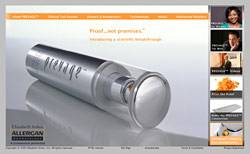
URL: http://www.prevageskin.com/

I chose Prevages Skincare site for many reasons. First of the color scheme is soothing as well as eye catching. I like the way the orange contrasts with the steel of the product. The navigation of the site is simple and clean. My eye follows the flow of color to the left side of the page.


Hint: Read the Design Interact Review it will help with your paragraph.

10/29/2006

Building blocks

HTML-Stepping stones to building websites.

What is an HTML File?

  • HTML stands for Hyper Text Markup Language
  • An HTML file is a text file containing small markup tags
  • The markup tags tell the Web browser how to display the page
  • An HTML file must have an htm or html file extension
  • An HTML file can be created using a simple text editor

HTML Basics
Interactive HTML Tutorials

10/19/2006

Moving it>Gif Creation

What is Animation?
At its most basic, an animation is a series of images presented in rapid sequence to produce the illusion of motion. Many people make a distinction between animation as non-photographic artwork presented in this way, and movies as photographic images presented in sequence; but conceptually they’re very similar.

Reasons to Use Animation:

  • Calls attention to something
  • Illustrate a point that cannot be made with static images
  • Entertainment
Reasons not to Use Animation:

  • Distracting
  • Can look unprofessional
  • Will add load time to websites

Image Ready?
ImageReady has fewer features than Photoshop and is designed for quick editing of web graphics rather than effects-intensive graphics editing. ImageReady is a "pixel-based animation tool". This means that it stores the aimations as frames where each varies from the next based on differences in small square dots of color that used to display thins on the screenTo that end, ImageReady has such features as animated GIF creation, image compression optimization, slices for creating rollover effects, and HTML generation.

Tips and tutorials for creating animated GIFs and other animations with Adobe Photoshop and Imageready.

In Class Example

Easy:
Shake Effect

Snow Globe--create a Christmas wonderland

Harder
Animated TV

Moving Sunset

Invisible Text

Hardest:
Creating Giffs using movies

10/16/2006

Photoshoping Real Beauty

"Dove Evolution"
The Dove Campaign for Real Beauty (bus-ads with pictures of beautiful, but heavy, or old, or off-average models) has posted a video called Evolution. It depicts an attractive -- but blemished and drab -- model being prepped for a bill-board, from the makeup to the photoshop. It's a very effective short film.

10/13/2006

Monster Photoshop Mashups

Portfolio Item #3 Halloween Portraits

Trick or Treat! This week you will be creating a Halloween Photo for your portfolios on flickr. Your subject matter should come from something you created or shot.

**Remember this are supposed to be FUN so if you have doubts go without. This is not meant to offend individuals but to be an exercise in your creativity.**

Below are some links to get your creative juices following.

Haunted Memories

Monster Mod

I collected a number of tutorials that you can mix and match from. Please note you are free to find you own methods to create your spooky Halloween Photoshop creations.

Monsters
Scary Skin Texture--Using bugs to create skin texture.

Vampire--glowing red eyes and teeth with 24 steps

Vampire #2--glowing eyes, hair and teeth simpler steps.

Monkey Vampire Morph (monkey + blood sucker= monkey vampire?)

Skull Face--Replacing a face with an image of a skull.

Aliens--Turn an ordinary person into a green Alien.

Aliens #2--Transform someone into an Alien and add a new background

Zombies--Creating the undead.

Zombie #2--Using Mandy Moore to create a hole in your head

Super Quick Zombies


Ghosts--your 6th Sense @ work
Ghostly Background Imaging

Simple Ghosts

Casper

No Bodies: Removing a body from an image

Stone:
Stone Face effect--turning people into stone

Horror Movie Effects
Horror--super gross stuff **yucky**

Other effects:

Aging Photos--Turning color photos into wrinkled torn pages

Aging People--Turning young faces old.

Haunted House- photoshop your favorite contemporary house into an elderly, rotting haunted mansion

Grunge Look

Torn/Burnt Photo Edges--create burnt edges around your images

Fine Art Painted Effect
-Merging fine art with current images. The process itself is not hard however the image matching can be a tuff fit.

Super Werid Dark Art--I am not sure what to say about this one. You end up with some big creepy looking thing with teeth and eyes.

10/12/2006

Pick it up

Today, we will be working with various selection tools. Below are some more extremely useful (and not very well-known) selection techniques: once you learn them, you will wonder how you ever got by without them.

Here are a couple of notes before you begin:
I tend to prefer hotkeys (e.g. [Ctrl+D] ), but I have provided equivalent alternatives (e.g. Select » Deselect – which denotes a menu command) wherever possible.
>>Select All [Ctrl+A] (Select » Select All)

Quick Masks

Selecting Stuff --Use a few of your own images to walk through each selection action.

Veggie Head Selection Practice

Choosing Color-Recoloring black and white photos using selection tools

Good Luck

10/02/2006

Test your colors

Below is the link to walk you through the basics of color theory. Make sure you do all the excerises:

http://poynterextra.org/cp/colorproject/color.html

Fun Color Quizzes:

YELLOW is Your Color

You are quite the powerful thinker. It's this talent that allows you to overcome a plethora of great obstacles. Luckily, this doesn't affect your ego and you give off a pretty easy-going appearance. You enjoy the finer things in life and also have an attraction to art. If you can help it, you try not to rock the boat. But you also can't stop yourself from searching for new ideas, methods or styles.

This is the result given based of my answers to the color quiz. Why not find out what color you are?

Take the True Value Color Quiz or see below for other quizzes and color/personality information.


ColorQuiz.comJJ took the free ColorQuiz.com personality test! Now you can too!

"Strives for a life rich in activity and experience..."

10/01/2006

Photoshop Texting


Graphic designers use creative typography to communicate more than just the basic meaning of the words. Explore creative ways to use type including student work, posters, and fanciful type treatments. Do typographic exercises that allow you to expand your own creative use of type and fonts. We of course will be using photoshop to do this.

Inclass Photoshop Tutorials

Neon glowing text Create a neon text using a layer style tech (like the Media image above)
Making the Bling A simple method to create a text full of diamonds !!!

Stylish Looking Text Effect Create stylish text with the help of filters.

Other text turtorials: (pick one)

Text Effects--Good-Turtorials
Tutorial Outpost--Photoshop Text Effects

9/24/2006

Artist Statement example.

Shock and Awe
Jenny Jax
9/26/2006

I created “Shock and Awe” for my Media Graphics and Design class at Eastside Prep in East Palo Alto, California. The piece is meant to illustrate both pop art as well as Warhol techniques. In addition, I wanted to illustrate a multi step tutorial to my aspiring design students.


I choose a close up candid shot of myself making a funny face. I took the photograph over the summer after having my hair dyed red and black. In addition, I was still learning the functions of the digital camera. I started with a color photograph and loaded the shot into Photoshop CS. I turned the photo into a black and white and then applied an artist cutout filter. I prefer this to the threshold technique because it breaks the photo into 3 colors-grey, black and white. I then applied the paint bucket to the photo and increased the canvas size. I then adjusted the hue and saturation to make each pattern look different.


As I mentioned before, the style of this design was influenced by the Pop Art movement. I borrowed the style of Andy Warhol's famous screenprints. I was also inspired by the upcoming Halloween season. I choose dark colors to give the image a dark ominous vibe. I wanted the viewer to wonder what the woman saw in the room to make her open her eyes and gape open her mouth.